James Titus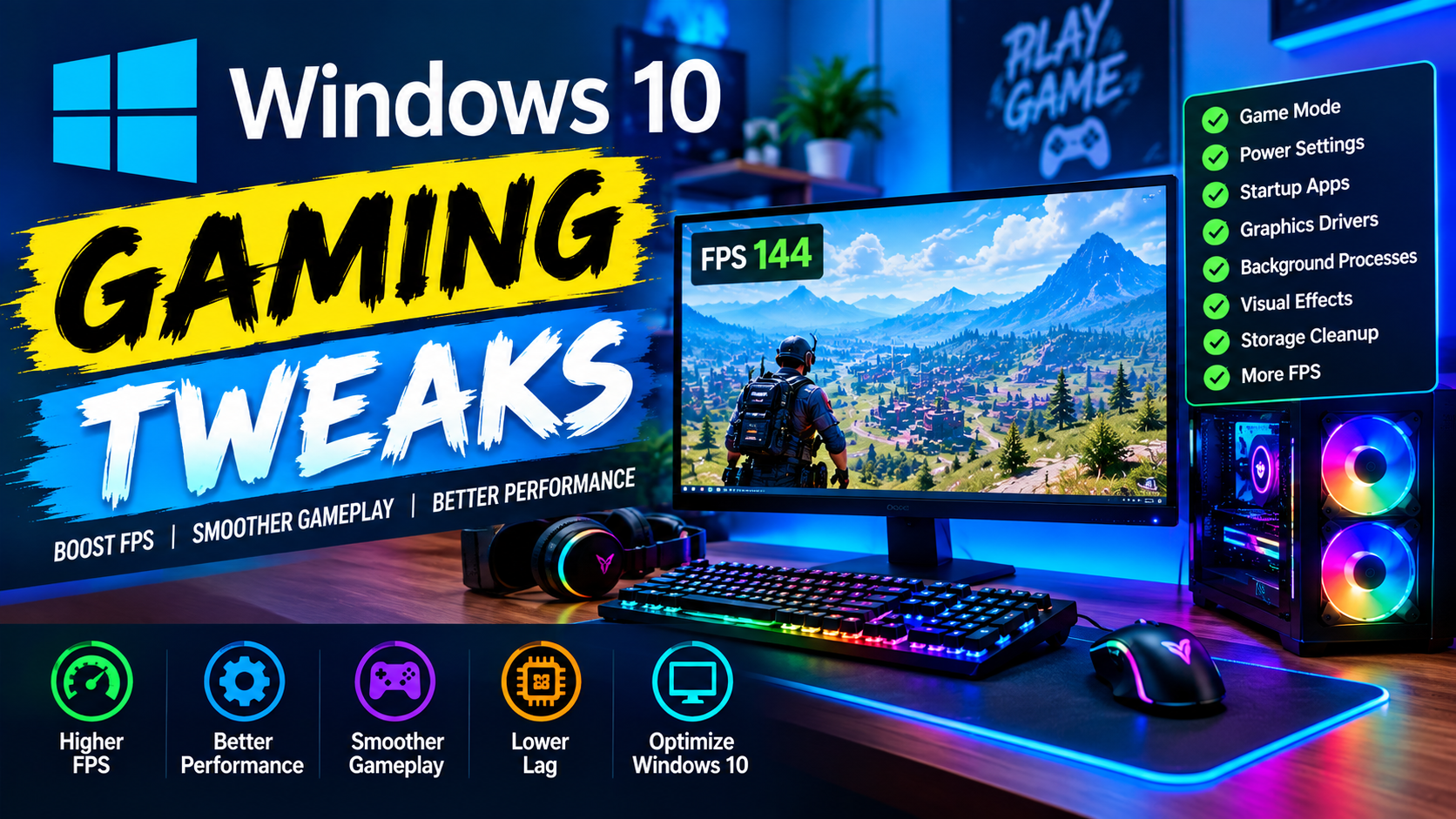
Gaming on a Windows 10 PC can be an enjoyable experience, but performance may vary depending on hardware, system settings, background applications, and game configuration. Even when a computer meets the recommended requirements of a game, players may sometimes experience frame drops, stuttering, slow loading, or inconsistent performance.
Fortunately, there are several Windows 10 gaming tweaks that can help users make better use of their existing hardware. These adjustments do not replace a powerful CPU or GPU, but they can reduce unnecessary system activity and create a more gaming-friendly environment.
Why Windows 10 Optimization Matters
Windows 10 performs many tasks in the background. Some are essential for security and normal operation, while others may consume system resources that could otherwise be available to games.
CPU usage, RAM consumption, storage activity, and background applications can all influence gaming performance. Optimizing relevant settings can help reduce unnecessary resource usage.
Before making changes, however, users should understand what each setting does. Aggressive modifications are not always beneficial, and unnecessary changes can sometimes create stability problems.
1. Manage Startup Applications
Many applications automatically start when Windows boots. Messaging applications, launchers, cloud-storage programs, and other utilities can continue running in the background even when they are not needed.
Windows 10 includes a Startup section in Task Manager where users can review applications that launch automatically.
Disabling unnecessary startup applications can help reduce background resource consumption. It can also make Windows start faster.
Users should avoid disabling programs they do not recognize or essential security software without first checking what those applications do.
2. Use an Appropriate Power Plan
Windows power settings can influence how a PC balances performance and energy consumption.
For gaming desktops, a performance-oriented power configuration may be useful when running demanding games. On laptops, users should consider battery life because higher performance settings can increase power consumption.
The appropriate setting depends on the device and the user’s priorities. Gamers who want consistent performance while connected to AC power may benefit from reviewing their power configuration.
3. Enable Game Mode
Windows 10 includes Game Mode, a feature designed to prioritize gaming-related activity when supported.
Game Mode can help Windows manage system resources while a game is running. It is worth checking whether the feature is enabled, especially on systems where background activity competes with gaming workloads.
The actual benefit can vary depending on hardware, game, and system configuration, so users should compare performance rather than assuming a dramatic improvement.
4. Reduce Unnecessary Visual Effects
Windows includes animations, transparency effects, and other visual features that can consume some system resources.
On modern gaming PCs, the impact is generally small. However, computers with older or less powerful hardware may benefit from reducing unnecessary visual effects.
Users can adjust Windows performance settings to prioritize performance over appearance. This can make the operating system feel more responsive while leaving more resources available for other tasks.
5. Keep Graphics Drivers Updated
Graphics drivers play an important role in PC gaming. NVIDIA, AMD, and Intel regularly release driver updates that can include compatibility improvements, bug fixes, and game-specific optimizations.
Keeping graphics drivers updated can help ensure that games communicate properly with the GPU.
Gamers should download drivers from reliable sources and avoid questionable driver-update utilities. Before installing major driver changes, creating a restore point or backup can also be a useful precaution.
6. Control Background Applications
Background applications are another important area to consider when applying Windows 10 gaming tweaks.
A browser with multiple tabs, video-streaming software, cloud synchronization, and other applications can consume CPU and RAM while a game is running.
Closing applications that are not required for gaming can free up resources. Task Manager can be used to identify processes that are consuming significant CPU, memory, disk, or network resources.
However, users should be careful when ending processes because some Windows processes are necessary for system operation.
7. Optimize Storage
Game loading times can be affected by storage performance. Keeping the system drive from becoming excessively full and removing unnecessary files can help maintain a healthy Windows installation.
Windows 10 provides built-in storage management features that allow users to remove temporary files and other unnecessary data.
Storage maintenance should also depend on the type of drive being used. Traditional hard disk drives and solid-state drives use different technologies, so they should not always be maintained in exactly the same way.
8. Adjust Game Graphics Settings
Not every performance improvement has to come from Windows itself. In-game graphics settings often have a much greater effect on FPS.
Reducing settings such as shadows, reflections, volumetric effects, and certain post-processing options can improve performance while allowing players to keep important visual features enabled.
Resolution and texture quality should also be considered. Finding a balance between image quality and performance is often more effective than applying extreme operating-system tweaks.
9. Monitor FPS and System Usage
One of the best ways to evaluate an optimization is to measure performance before and after making changes.
An FPS counter can show whether frame rates are improving. CPU, GPU, RAM, and temperature monitoring can provide additional information about potential bottlenecks.
For example, consistently high GPU usage may indicate that the graphics card is limiting performance. High CPU usage can point toward a processor bottleneck or a demanding background process.
Performance monitoring allows gamers to make decisions based on actual system behavior instead of relying on generic optimization claims.
10. Use a Reliable PC Optimization Tool
Manually changing Windows settings can take time, especially for users who are unfamiliar with system configuration.
A reliable PC optimization utility can bring several useful functions together in one place. Depending on the software, these features may include Windows optimization, startup management, performance monitoring, storage maintenance, and network tools.
For users looking for convenient Windows 10 gaming tweaks, an optimizer can provide a simpler way to review and manage relevant settings.
The most important consideration is transparency. Users should understand what a tool changes and should preferably have an option to reverse those changes.
Avoid Extreme Tweaks
The internet contains many Windows optimization guides that recommend registry modifications, disabling system services, or making aggressive configuration changes.
These techniques are not necessarily appropriate for every computer. A tweak that helps one system may have little effect on another and could potentially create unwanted behavior.
A safer approach is to make one change at a time, test the system, and keep track of what was changed. If a problem appears, reversing the most recent change becomes easier.
Final Thoughts
Windows 10 provides many settings that gamers can review to improve their PC environment. Managing startup applications, controlling background processes, reviewing power settings, enabling Game Mode, maintaining storage, and keeping graphics drivers updated are all practical areas to consider.
The most effective Windows 10 gaming tweaks will depend on the individual computer, installed hardware, and games being played. Rather than applying every tweak available online, gamers should focus on changes that address their specific performance problems.
With careful optimization and regular maintenance, users can get more consistent performance from their existing gaming PC without immediately investing in new hardware.